


Introduction
Most people want great-looking photos. But great photos usually mean learning difficult software.
Tools like Photoshop are powerful. But they come with a steep learning curve. You need to understand layers, masks, curves, and color grading. For many users, that is too much time and effort.
That is where an AI photo enhancer changes everything.
Meet Leawo Photo Enhancer. It is a desktop software tool that uses artificial intelligence to improve your photos automatically. No tutorials needed. No complex settings to learn. Just better photos in seconds.
What Is Leawo Photo Enhancer?
Leawo Photo Enhancer is a desktop application that uses AI to fix common photo problems automatically. You do not need any editing experience to use it.
The software detects issues in your image and corrects them on its own. Here is what it handles:
- Exposure correction: fixes photos that are too dark or too bright
- Color balancing: removes unwanted color casts and restores natural tones
- Sharpening: brings out fine details that look blurry or soft
- Portrait enhancement: smooths skin and improves facial features
- Noise reduction: cleans up grain from low-light shots
It works on both portraits and landscapes. It also supports RAW files, which is a big deal for photographers.
Key Features Put to the Test
Here is how the main features performed during testing.
1. AI Enhancement
For non-editors, understanding histograms, white balance, and tone curves is a headache. Leawo bypasses all of that.
The AI reads the data inside the image. It then applies exposure corrections, color fixes, and contrast adjustments natively. You see the result in seconds.
We tested it on a variety of images. Indoor shots, outdoor landscapes, and mixed lighting conditions all came out noticeably better. The AI avoids over-processing, which is a common problem with automated tools. Colors stay natural. Skin tones are not overcooked.
For beginners, this is the biggest win. You get professional-looking results without touching a single slider.
2. Portrait Retouching
Portrait photos are where Leawo really shines.
The software automatically detects faces and applies targeted improvements. Skin texture is softened without looking plastic. Blemishes are reduced naturally.
One standout feature is eye enhancement. Leawo detects eyes in the portrait, then slightly sharpens, brightens, and enlarges them. The effect is subtle but impactful. If you want to understand this feature more deeply, there is a helpful guide on how to enlarge eyes in portraits using AI tools.
We ran several portrait tests. The before-and-after difference was clear. Eyes looked more defined. Skin looked cleaner. The overall image had more professional polish.
3. Batch Processing
This is a huge time-saver for anyone who shoots in volume.
You can drop an entire folder of images into the interface at once. Leawo supports mixed formats, including RAW and compressed JPG files. It processes them all in a single click.
We tested a folder of 40 images. The processing was fast and consistent. Every photo came out improved. There were no errors or skipped files.
For event photographers, content creators, or anyone managing large photo libraries, batch processing alone makes Leawo worth it.
Step-by-Step: How Easy Is It Really?
Here is how the workflow looks from start to finish.
- Download and install Leawo Photo Enhancer on your Windows or Mac computer.
- Open the software. You will see a clean, simple interface.
- Click the import button and select your photos. You can add single files or an entire folder.
- Choose your enhancement settings. For most users, the default AI mode works perfectly.
- Click Enhance. The AI processes your images automatically.
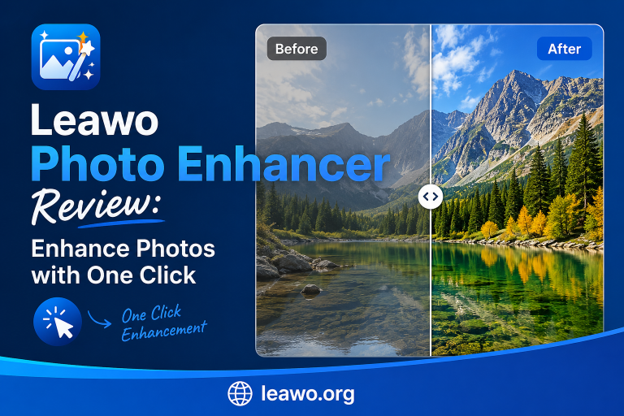
- Preview the results. You can compare the before and after versions side by side.
- Export your enhanced photos in your preferred format.
The whole process takes minutes, not hours. Even a complete beginner can do it on the first try.
Pros & Cons
Pros
- Very easy to use, even for beginners
- AI enhancement works well on a wide range of photos
- Portrait retouching looks natural, not artificial
- Batch processing saves significant time
- Supports RAW file formats
- Fast processing speed
- Clean and simple interface
Cons
- Limited manual control for advanced users who want fine-tuning
- Requires a desktop installation (no mobile or web version)
- The free trial has output limitations
Best Use Cases for Leawo Photo Enhancer
1. Casual Photographers and Beginners
If you take photos on your phone or entry-level camera and want them to look better, Leawo is perfect. You do not need to learn anything. Just import and click.
2. Portrait and Family Photo Sessions
Parents, families, and portrait photographers dealing with large batches of session photos will benefit greatly. Skin retouching and eye enhancement make every shot look polished.
3. Content Creators and Bloggers
Speed matters for content creators. Leawo’s batch processing lets you prepare dozens of photos quickly. Your blog posts, social media feeds, and websites will look consistent and professional.
4. Recovering Old or Low-Quality Photos
Leawo is excellent for restoring older photos or fixing shots taken in bad lighting. The AI can recover detail, fix exposure, and remove noise from images you thought were unusable.
Frequently Asked Questions
1. Is Leawo AI Photo Enhancer suitable for complete beginners?
Yes, absolutely. Leawo is designed with beginners in mind. The interface is simple and the AI does all the work. You do not need any photo editing knowledge or experience.
2. Can Leawo AI Photo Enhancer improve old photos automatically?
Yes. The AI can detect and fix issues in old photos, including faded colors, poor exposure, and image noise. It is a great tool for restoring memories.
3. Is there a free version of Leawo AI Photo Enhancer?
Yes, Leawo offers a free trial. The trial lets you test the core features before purchasing. The paid version removes output restrictions and unlocks the full feature set.
4. Does Leawo AI Photo Enhancer support batch processing?
Yes. You can import an entire folder of photos and process them all in one click. It supports mixed formats, including RAW and JPG files.
5. What image formats does Leawo AI Photo Enhancer support?
Leawo supports a wide range of formats including JPG, PNG, BMP, TIFF, and RAW files from popular camera brands. This makes it flexible for both casual and professional photographers.
Final Verdict
Leawo Photo Enhancer delivers exactly what it promises: fast, automatic, and effective photo enhancement.
The AI engine handles the hard work. Exposure, color, sharpness, and portrait retouching all improve with a single click. The batch processing feature is a genuine time-saver. And the support for RAW files makes it useful for serious photographers too.
It is not a replacement for Photoshop if you need pixel-level control. But for most users, that level of control is not needed. What people want is better photos, quickly. Leawo delivers that.
Whether you are a beginner, a content creator, or someone with hundreds of portraits to process, Leawo Photo Enhancer fits the job.
Ready to see the difference for yourself? Download the free trial of Leawo Photo Enhancer today and see how it transforms your photos with a single click.
